
How to add one search across multiple documentation sites
A practical guide to searching across related documentation sites, testing result quality, and tuning rankings and filters.
If your documentation is spread across several websites, readers may have to choose which site to search before they can find the page they need.
A shared search can remove that extra step by searching related documentation from one place.
This guide shows how to add multiple documentation sites to one Biel.ai project, test the combined results, and use ranking and filters when the default search experience needs adjustment.
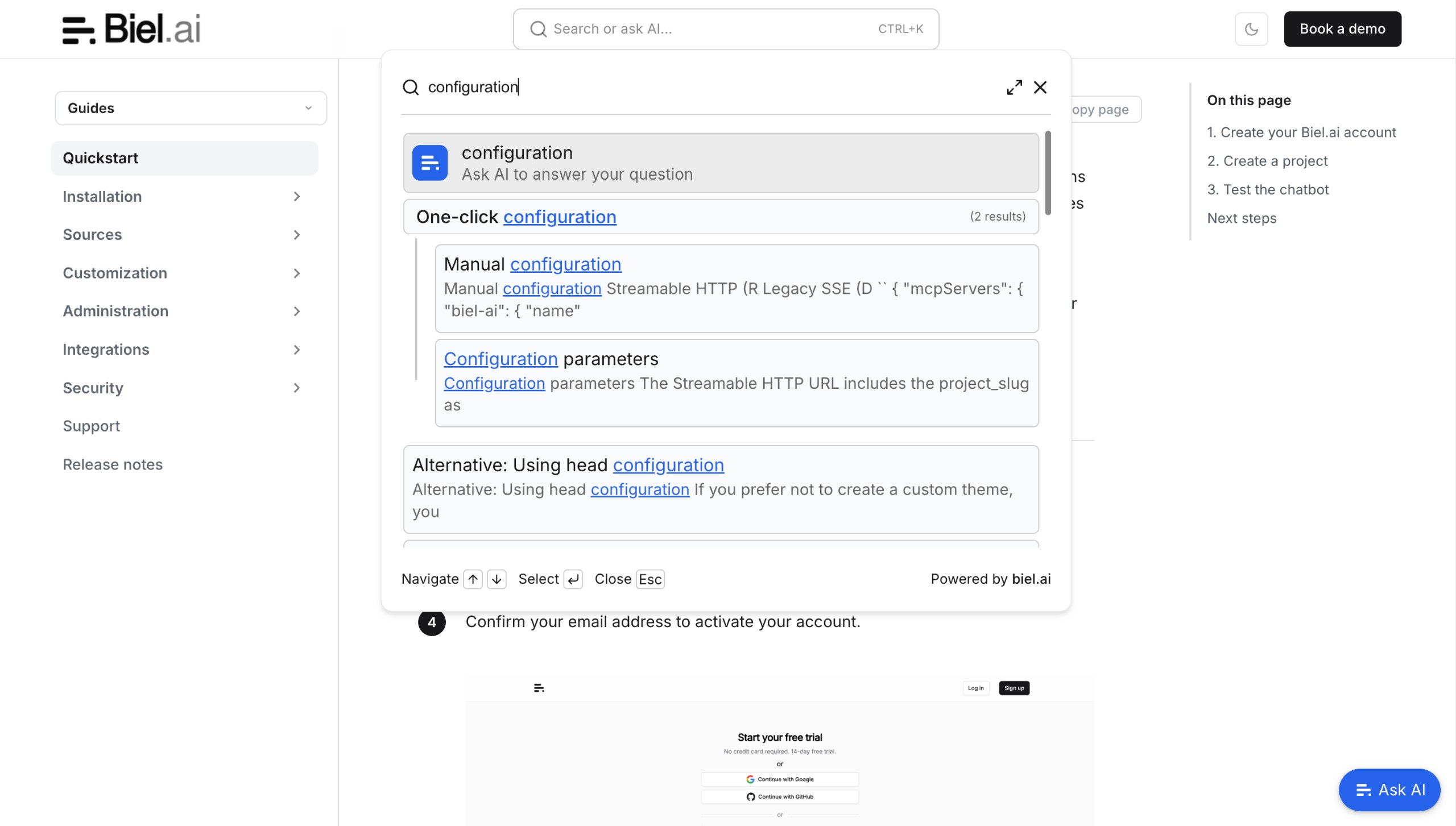
This example shows the reader-facing search experience on a documentation site. Test with the terminology your own readers use after indexing is complete.
Decide which sites you want to search together
There is no universal rule for which documentation sites should share one search experience.
You might combine a product guide, API reference, knowledge base, integration documentation, or other related sites. Another team might prefer separate search experiences for different products or audiences.
What matters is whether the combined results are useful to your readers.
Before configuring search, identify the sites you want to include and a few searches you expect readers to make across them. This gives you something concrete to test once the content is indexed.
Add the documentation sites to one Biel.ai project
Create a Biel.ai account and create a project.
For Biel.ai search, add the websites you want to search as URL or sitemap sources. The search widget indexes website content, so other project source types such as uploaded files are available to the chatbot but do not appear in search results.
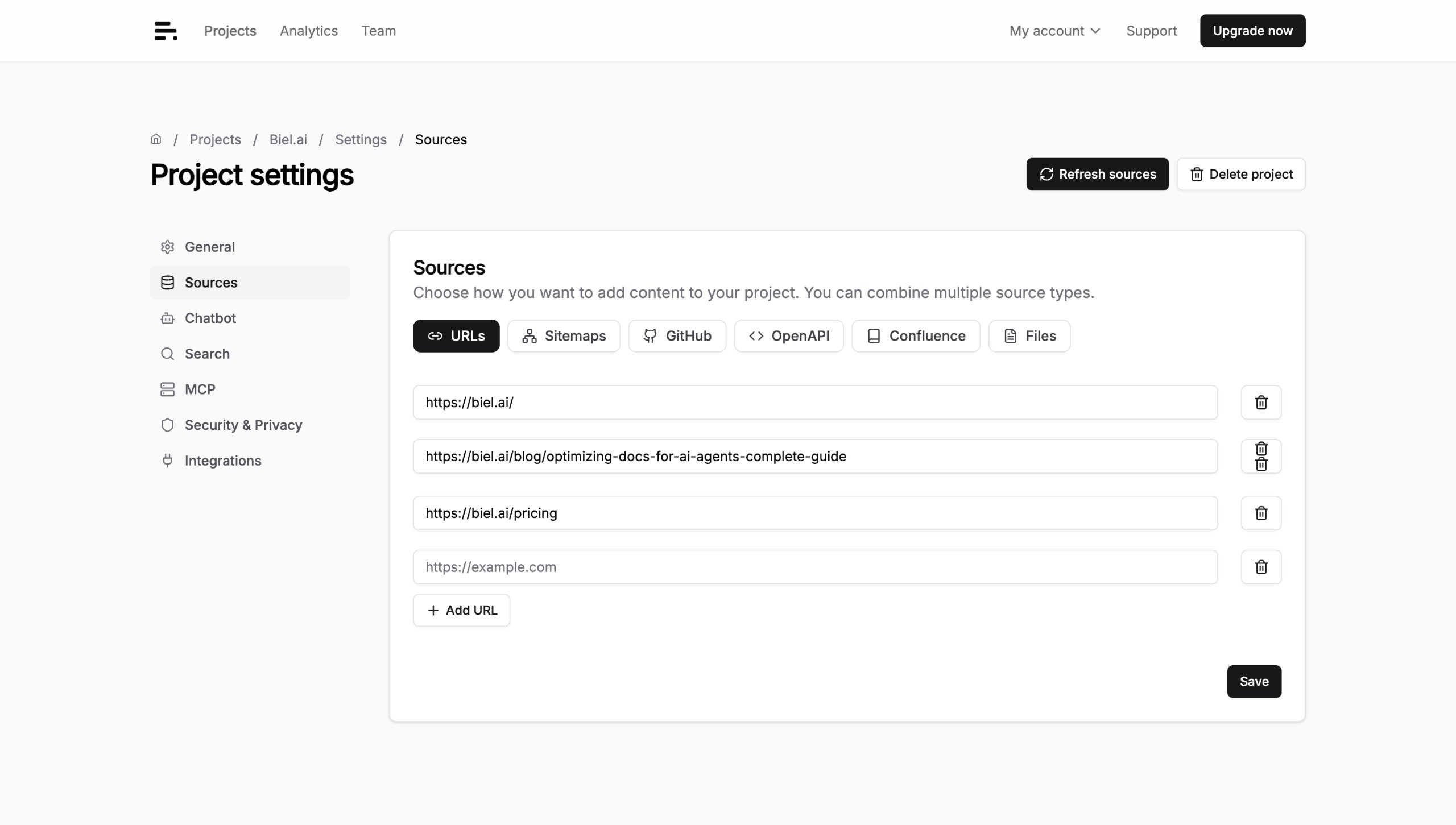
In project settings, choose a source type and add the websites you want readers to search together. The example shows several public Biel.ai URLs.
See the Sources overview for source configuration and the Search documentation for current search behavior and limitations.
After adding the sites, wait for indexing to complete before testing the search experience.
Test searches across the sites
Run searches that should return useful pages from different parts of the indexed documentation.
Use the kinds of queries readers actually enter, such as feature names, task descriptions, error codes, and terminology that appears across more than one site.
| Search | What to check |
|---|---|
| A setup term | The relevant setup guide appears near the top |
| An API error or error code | The appropriate API or troubleshooting page appears |
| A feature name | The most useful page ranks above less relevant mentions |
| A recently updated topic | Current documentation ranks above older pages |
| A broad term used across several sites | Results from the most useful part of the documentation are easy to find |
Do not expect every query to produce the ideal ranking immediately.
If the right page is indexed but appears too low, you can tune the search rather than changing the source set.
Improve rankings with metadata and boost scores
Biel.ai search ranks pages using their content and title, metadata, and URL structure.
Start by checking the pages themselves. Clear titles, descriptions, and keywords can make the intended result easier to match with a query.
You can also use a boost score to move specific pages or groups of pages higher or lower in the results.
For example, if task-oriented guides should usually rank above background material, you can give those pages a positive boost. If an older section must remain published but should appear less prominently, you can apply a negative boost.
See Search customization for metadata and boost configuration.
Use boosts to improve useful ranking signals, not to compensate for documentation that is outdated or misleading.
Add filters when readers need to narrow the results
When several sites contain useful results for the same terms, filters can help readers choose the part of the documentation they want.
For example, you might expose filters such as:
- Guides
- API
- Troubleshooting
- Integrations
Biel.ai search filters narrow results using URL patterns, so they work best when your documentation URLs already reflect useful categories.
Filters do not need to mirror your site navigation exactly. Choose categories that help readers reduce a broad result set.
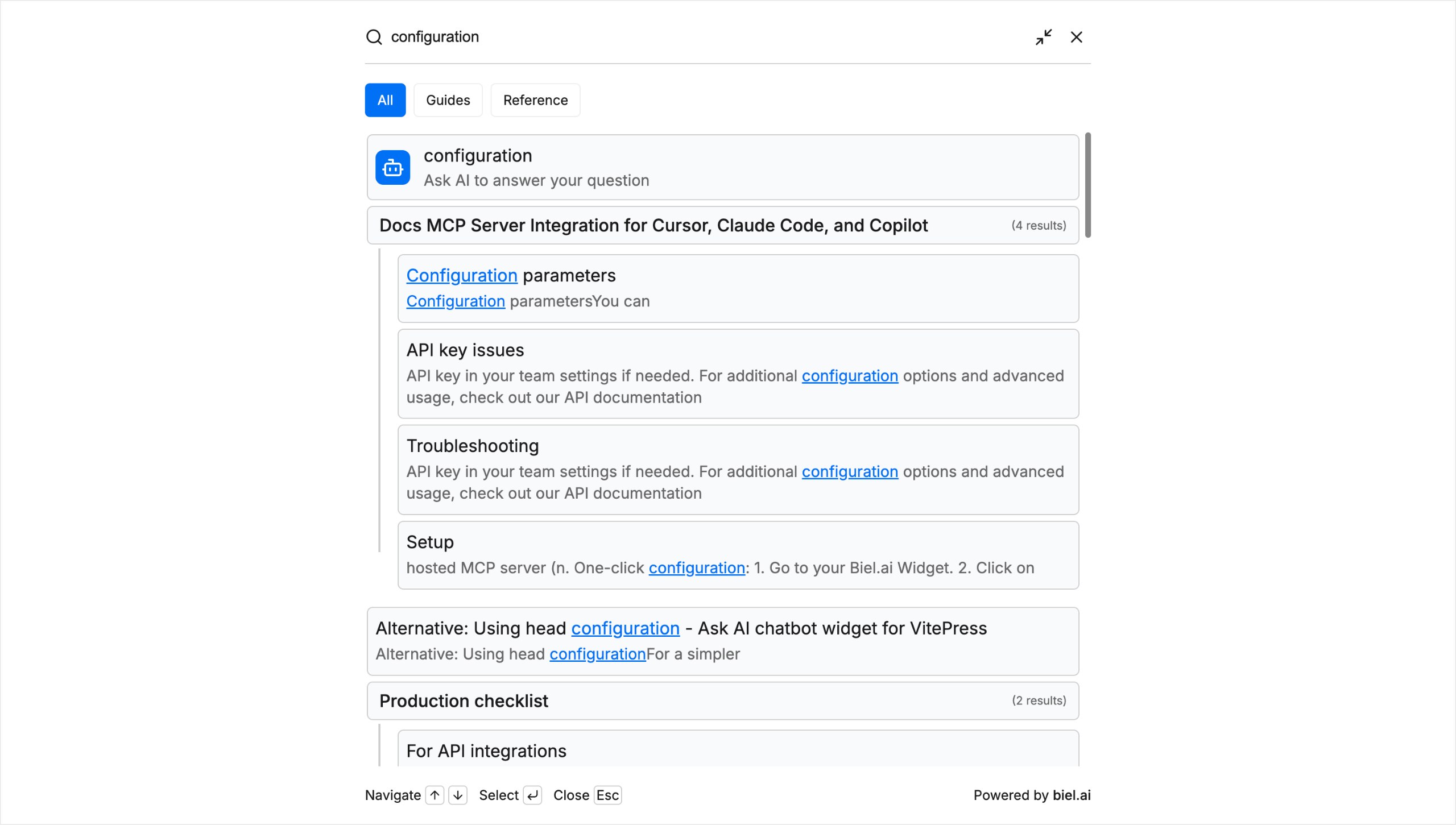
This search view shows filters readers can use to narrow results. Configure filter labels and URL patterns to match useful categories in your own documentation.
See Search filters for configuration details.
Recheck search after documentation changes
Search quality can change when you publish new pages, rename sections, move URLs, or leave older documentation online.
After a significant documentation change, rerun a few representative searches.
Check whether:
- the current page still appears prominently
- newer content has displaced the right result unexpectedly
- older pages rank above the current procedure
- filters still include the pages they are meant to cover
- boost rules still reflect the way you want readers to navigate the documentation
If a ranking problem comes from stale or duplicate documentation, fix the source content first. Use filters and boosts when the content is valid but the search experience needs better prioritization.
Add chat when it helps alongside search
The same Biel.ai project can also power an Ask AI experience.
Search helps readers find and inspect documentation pages. Chat helps them ask a question and get an answer grounded in the project's indexed sources.
You can offer both from the same documentation experience, but test them separately. Search ranking and chatbot answer quality are different problems.
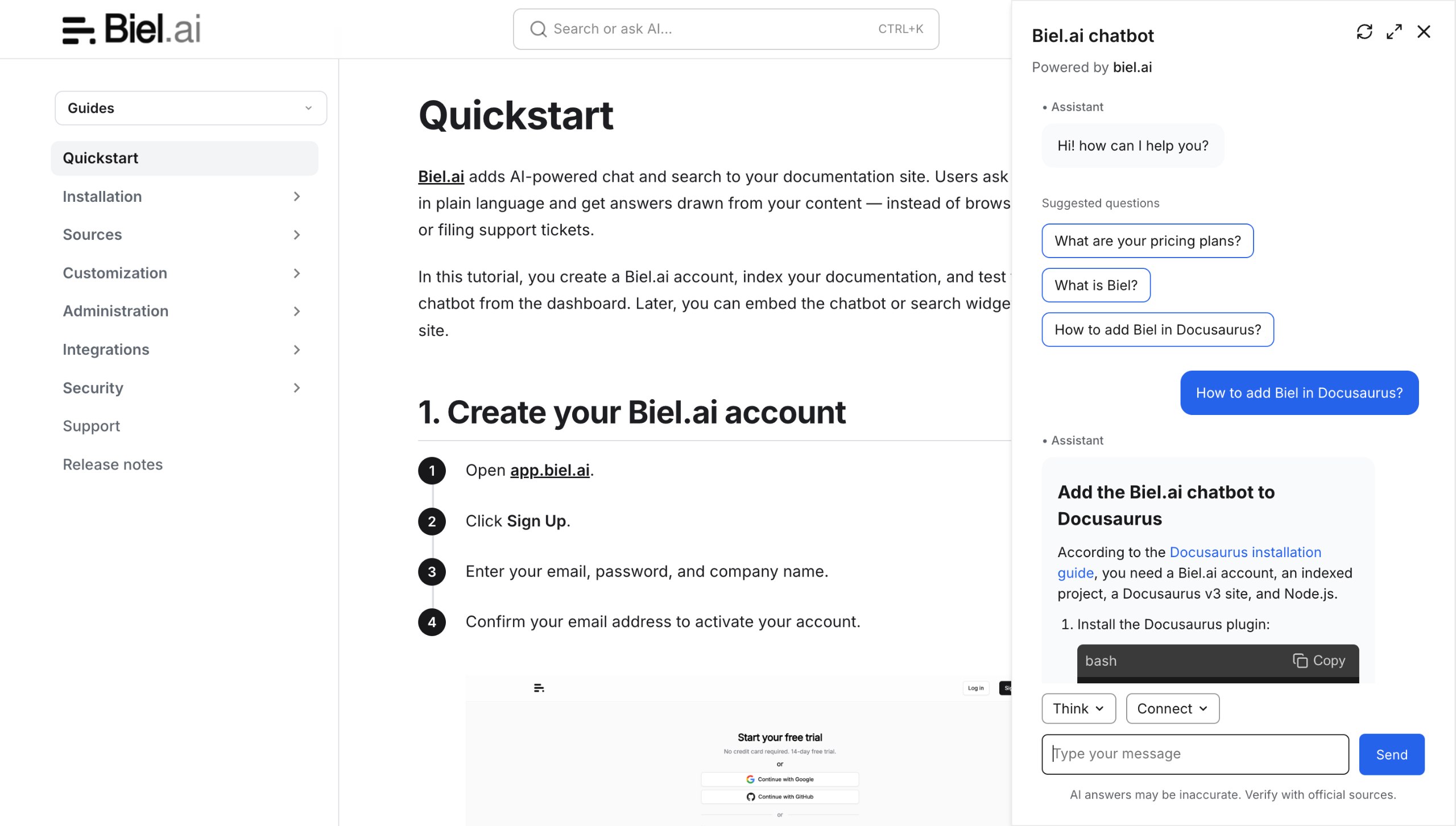
This example shows chat alongside documentation. The visible reminder to verify answers with official sources is a useful prompt for readers to inspect the underlying documentation when needed.
For more on the handoff between the two, see why documentation search needs an Ask AI button.
For a fuller chatbot review, see how to evaluate a documentation chatbot.
Frequently asked questions
Can Biel.ai search across multiple documentation websites?
Yes. Add the websites to the same Biel.ai project as URL or sitemap sources, then use the project with the search widget.
Can Biel.ai search uploaded files or other project sources?
Not through the search widget. Biel.ai search currently indexes website content. Other project sources can be used by the chatbot but do not appear in search results.
What should I do if the wrong page ranks first?
First check that the page content, title, metadata, and URL make its purpose clear.
If the correct page is indexed but still ranks too low, use boost scores to adjust its priority. You can also add search filters when readers need to narrow results to a particular section or type of documentation.
Should I use filters or boosts?
Use filters when readers need to narrow a result set themselves.
Use boosts when you want to change the default ranking of particular pages or sections.
You can use both in the same search experience.
Add one search across your documentation sites
Create a Biel.ai account, add the documentation websites you want to search to one project, and test a few real queries.
If the default ranking needs adjustment, use metadata and boost scores to prioritize the right pages, and add filters when readers need a faster way to narrow the results.